0. Before You Start
Save = Deploy
Every time you hit Save in the Theme Customizer or edit a product/article, changes go live immediately. There is no staging environment.
Version Control via GitHub
Your theme is connected to a GitHub repository. Every save in the Theme Customizer or code editor is tracked as a version.
To connect (if not already set up): Online Store > Themes > … > Connect to GitHub — select the repo and branch. From that point, every change syncs automatically.
Reverting to a Previous Version
- Go to the connected GitHub repo
- Find the commit you want to restore (each save = a commit)
- Revert the commit and push to the connected branch
- Shopify pulls the changes automatically
Tip
Shopify also keeps its own version history: Online Store > Themes > … > Edit code. The code editor tracks recent file changes, useful for quick rollbacks without touching GitHub.
1. Discounts & Pricing
2 ways to show a sale price on the storefront:
Option A: sale_price metafield (current Kismet flow)
- Set
custom.sale_price metafield on the product (value in dollars, e.g. 29.99)
- The theme renders: $49.99 $29.99
product.price is shown struck through; the metafield value is the displayed "final" price- Requires a matching Discount in Admin > Discounts so the checkout price matches what's displayed
sale_price metafield takes priority over compare-at price
Option B: Compare-at price (native Shopify)
- Set Price = final sale price (what customer pays)
- Set Compare-at price = original/higher price (shown struck through)
- The theme renders: $49.99 $29.99 natively
- No discount rule needed — checkout price matches automatically
- Simpler, no metafield required
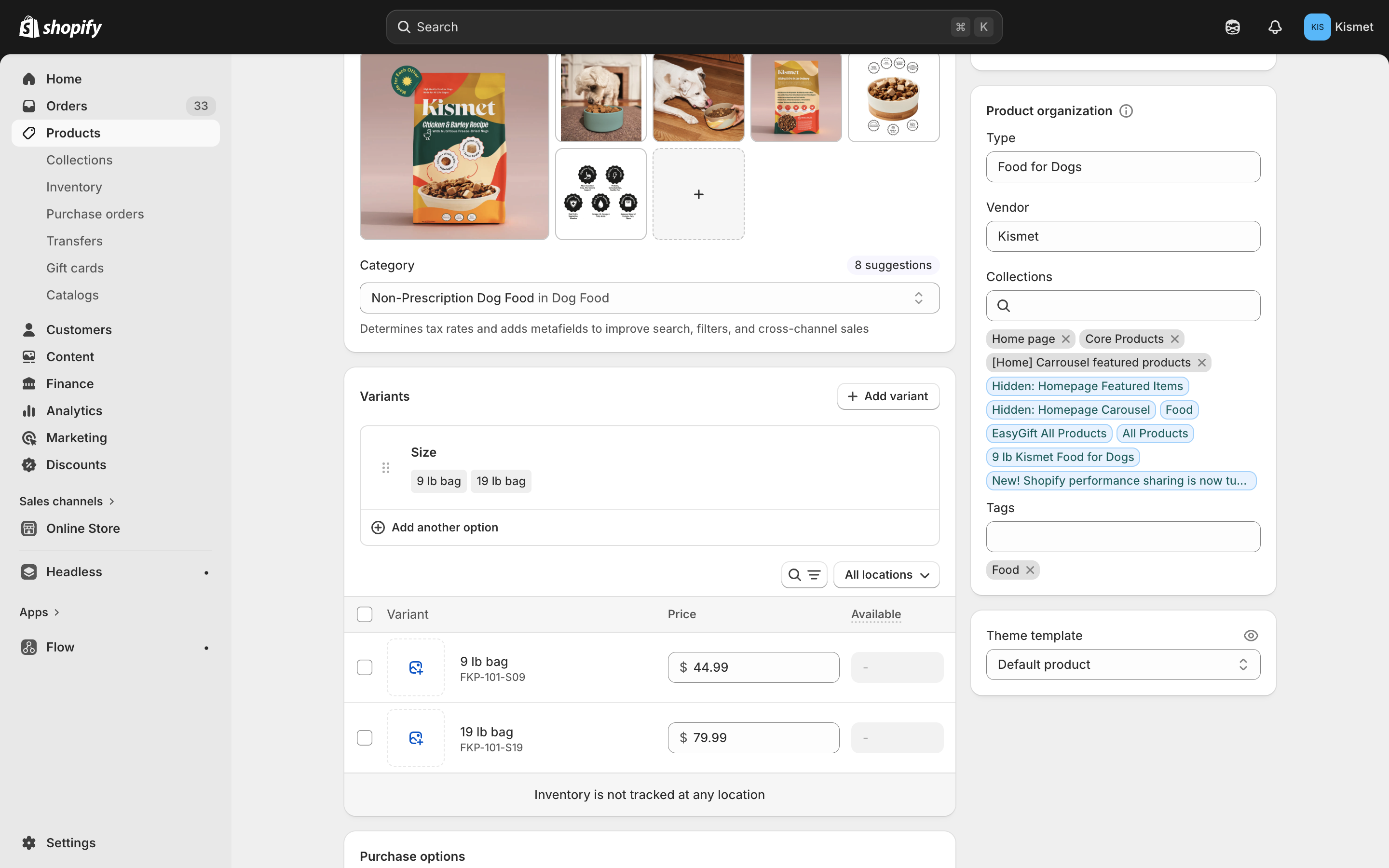
Product editor — variants with pricing, tags, and collections
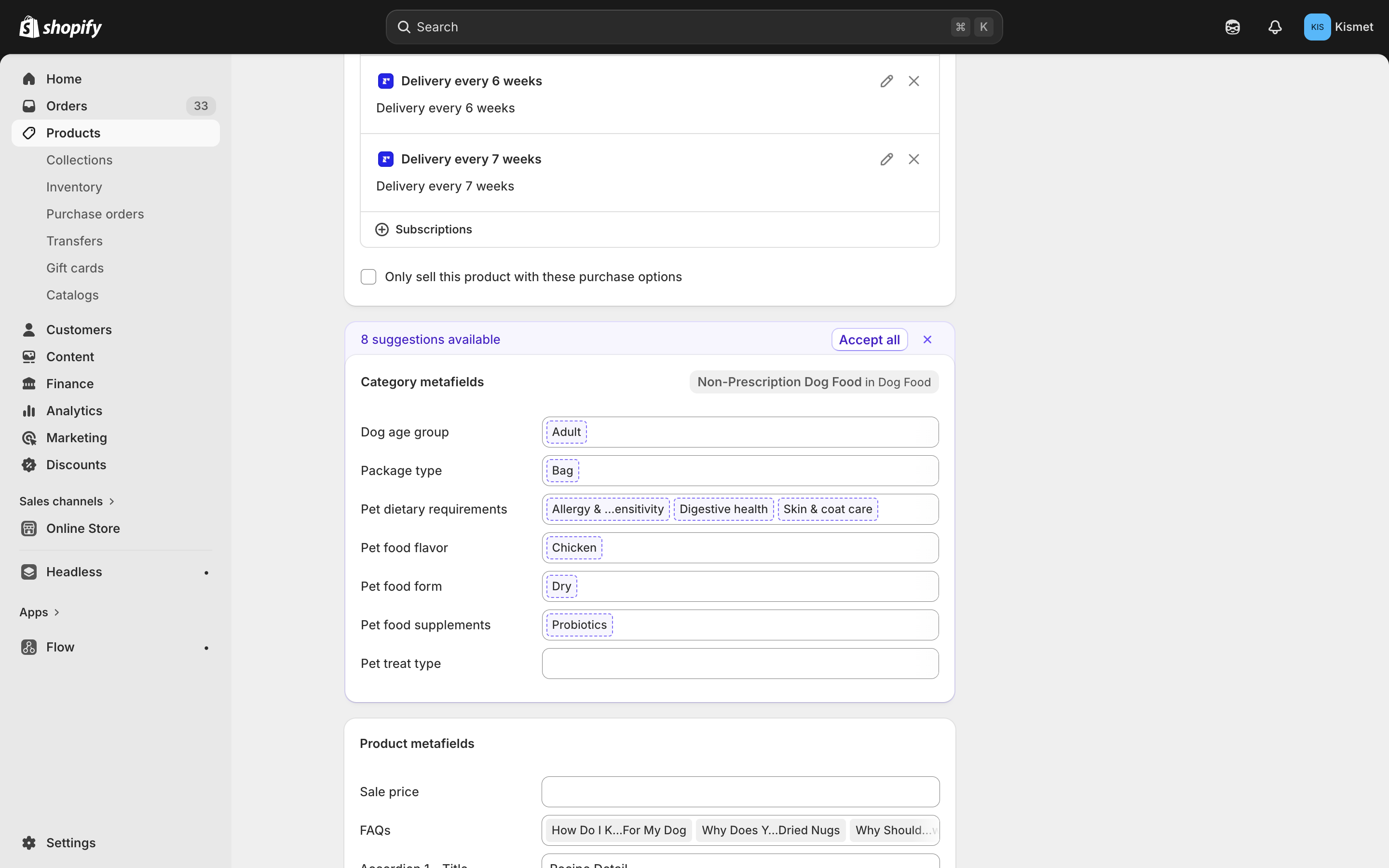
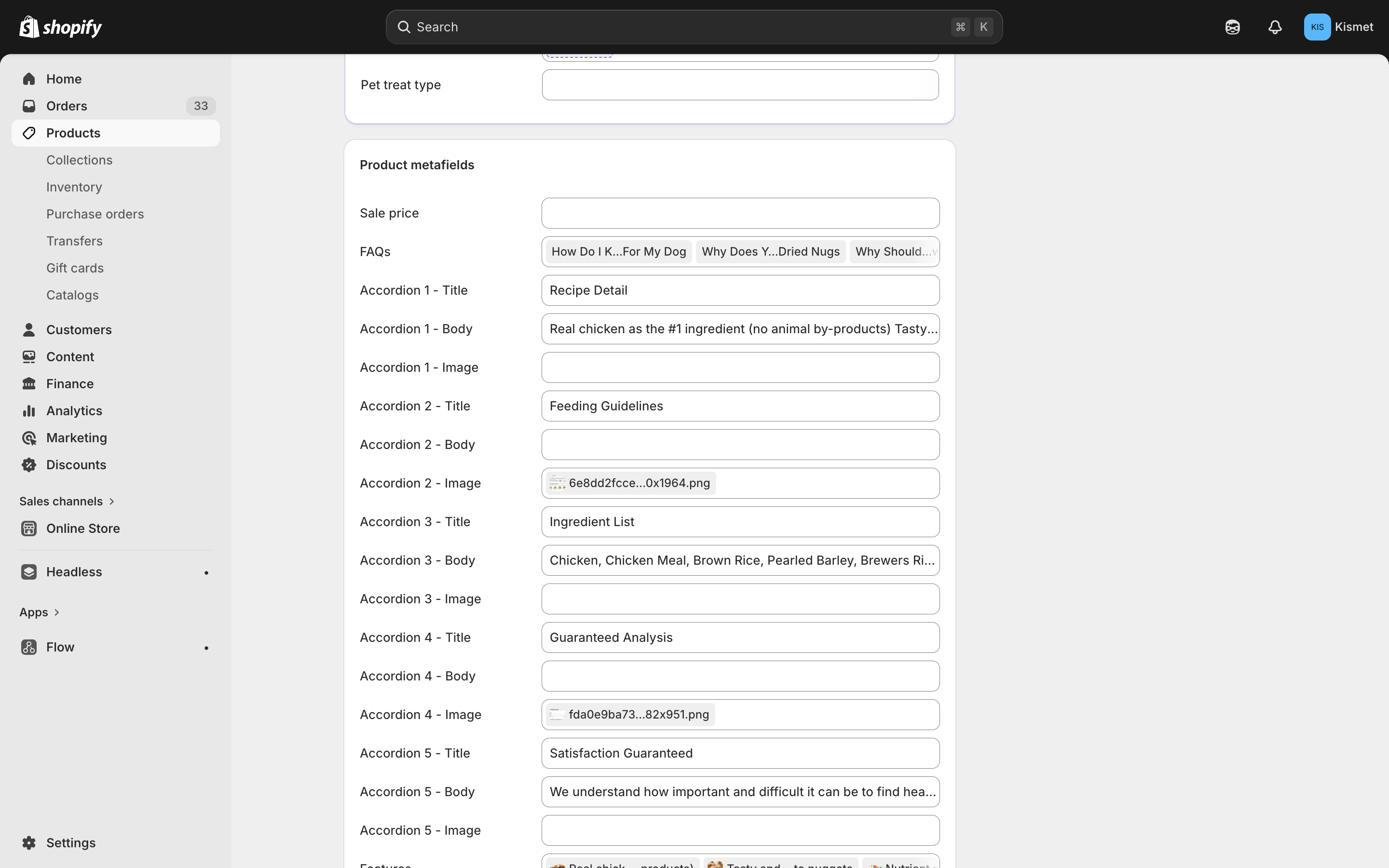
Product metafields — Sale price field and FAQs
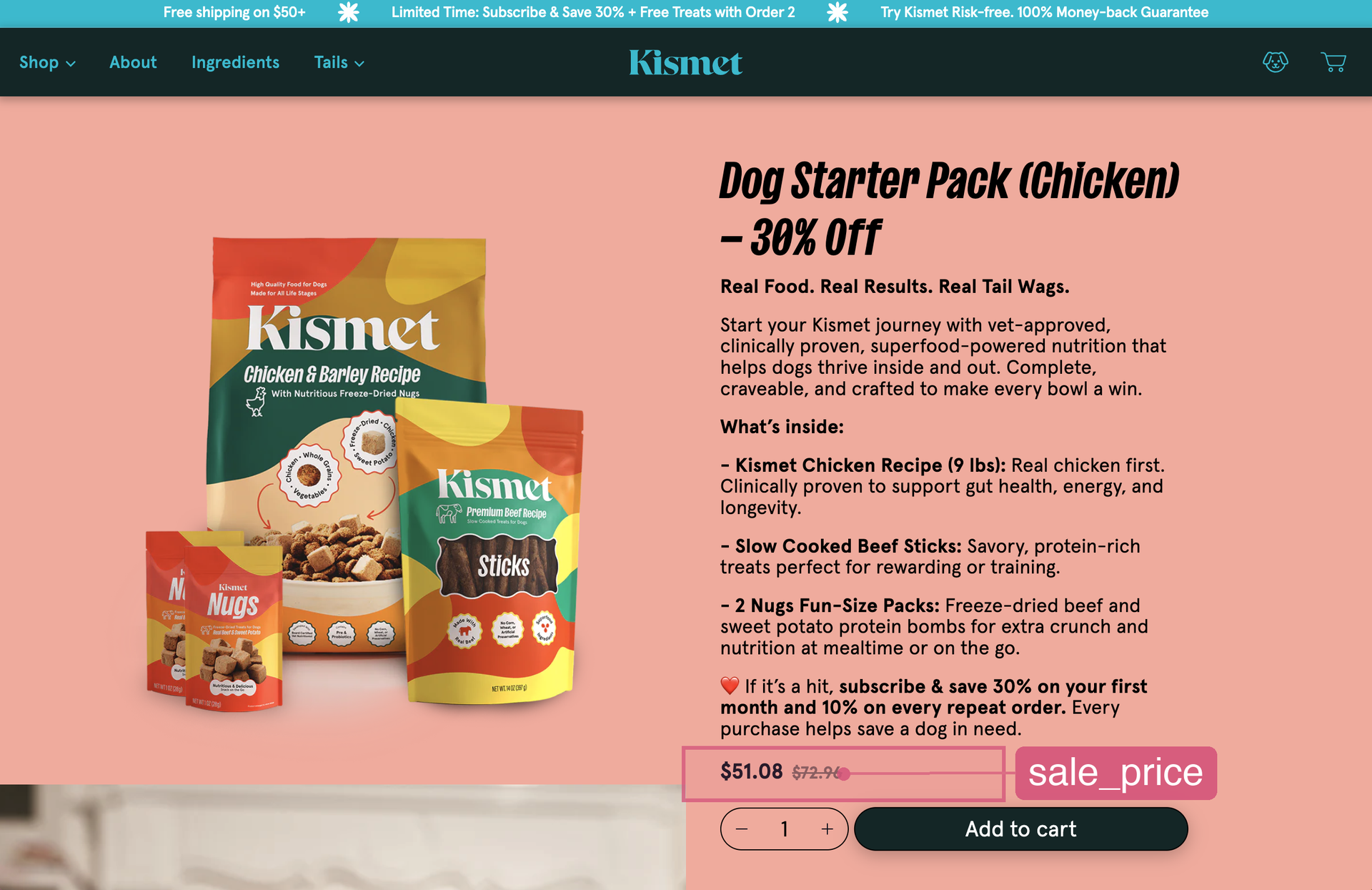
Live PDP — sale_price metafield renders the discounted price (e.g. $51.08 with ~~$72.96~~ struck through)
Free Gift (Scoop)
- Configured in Theme Customizer > Header > "Cart Gift Logic"
- Settings: Free Gift Product (product picker) + Trigger Tag (default:
Food)
- When a product tagged with the trigger tag is in the cart, the gift is auto-added
- If the customer removes the gift, it won't re-add for 1 hour
- Lives in the header section because it's validated in the cart drawer
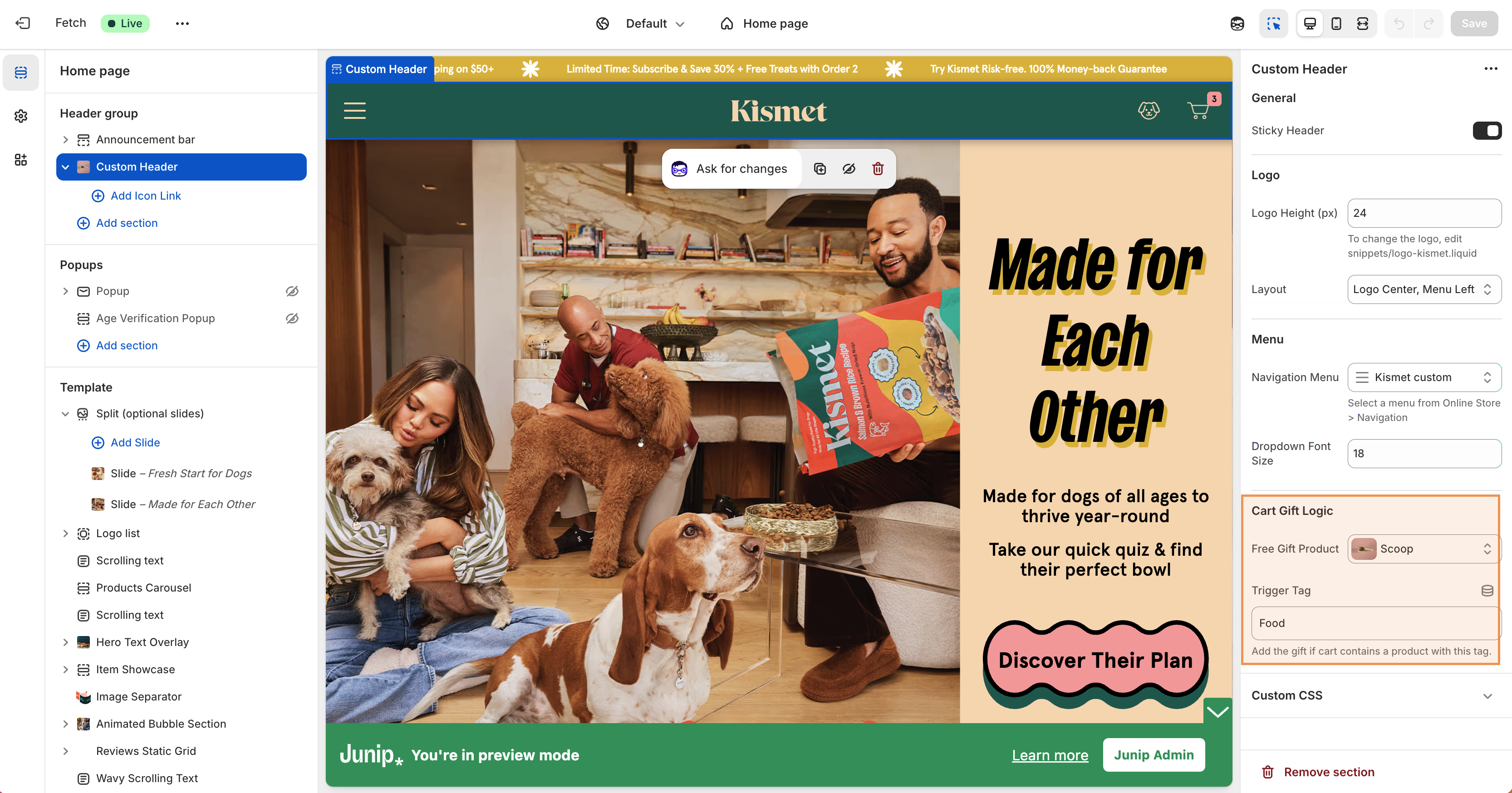
Theme Customizer > Header group > Custom Header — Cart Gift Logic: Free Gift Product (Scoop) and Trigger Tag (Food)
2. Products
Edit products at Admin > Products > select product.
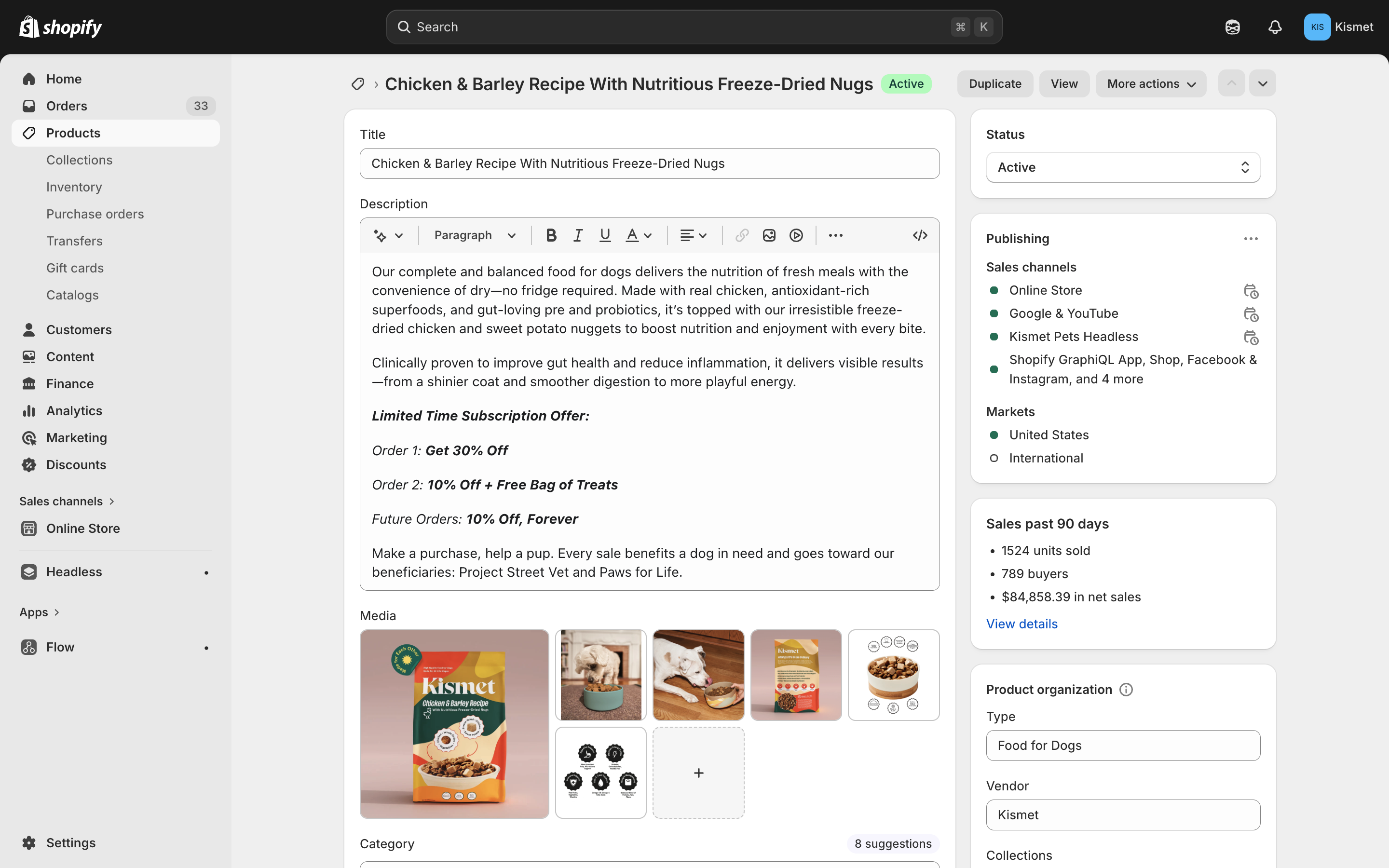
Product editor — title, description, media, status, publishing channels
Standard Shopify fields: title, description, images (all appear in the scrollable PDP gallery), variants (size), pricing, tags.
Custom Metafields
Scroll down in the product editor to find these:
| Metafield | What it does |
|---|
badge | Text shown on product card & PDP (e.g. "New", "Best Seller") |
sale_price | Override sale price in dollars (see Discounts section) |
flavor_group | Reference to a flavor_group metaobject (enables flavor picker pills) |
flavor_name | This product's flavor label (e.g. "Chicken & Barley") |
accordion_1..5_title | Expandable info section titles (orange section on PDP) |
accordion_1..5_body | Expandable info section body (rich text) |
accordion_1..5_image | Optional image per accordion item |
features | List of feature refs → interactive feature list on PDP |
reviews | List of review refs → review cards on PDP |
faqs | List of FAQ refs → FAQ accordion on PDP (also controls visibility of "FAQS" scrolling text) |
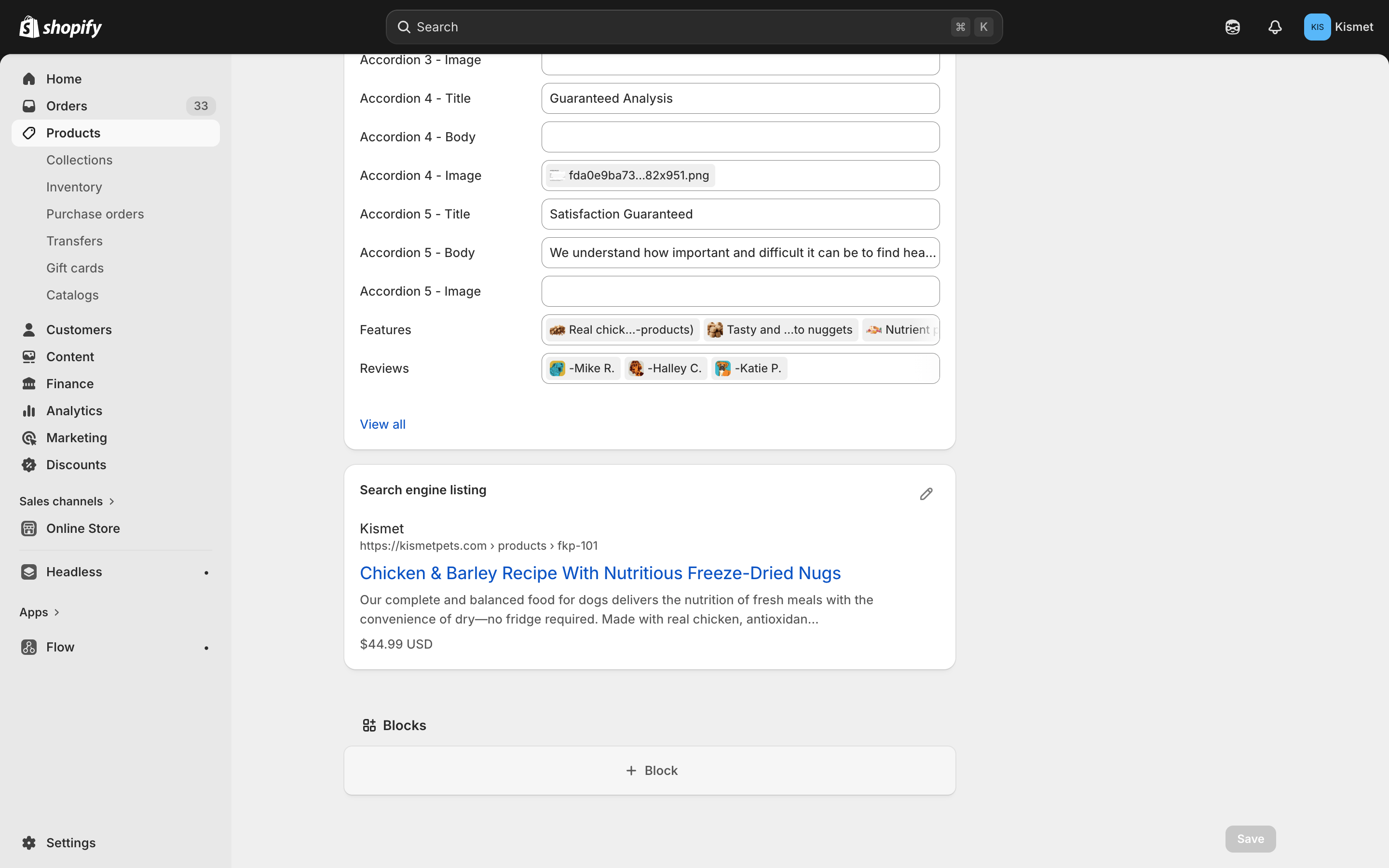
Product metafields — Features, Reviews, and Search engine listing
Metafields on the Live PDP
Each metafield drives a specific section of the product detail page:
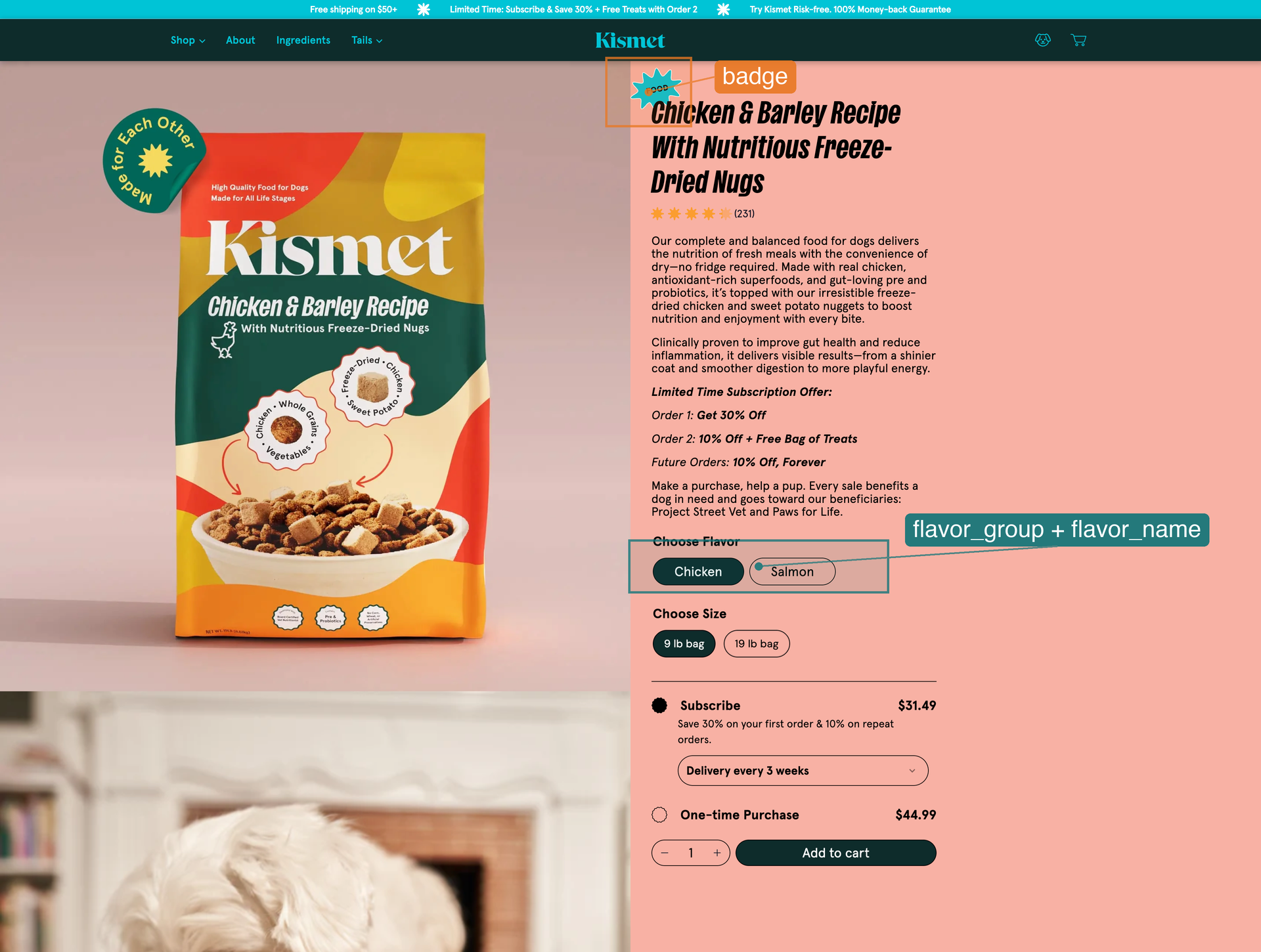
PDP hero — badge (top-left), flavor_group + flavor_name (flavor pills), sale_price (pricing)
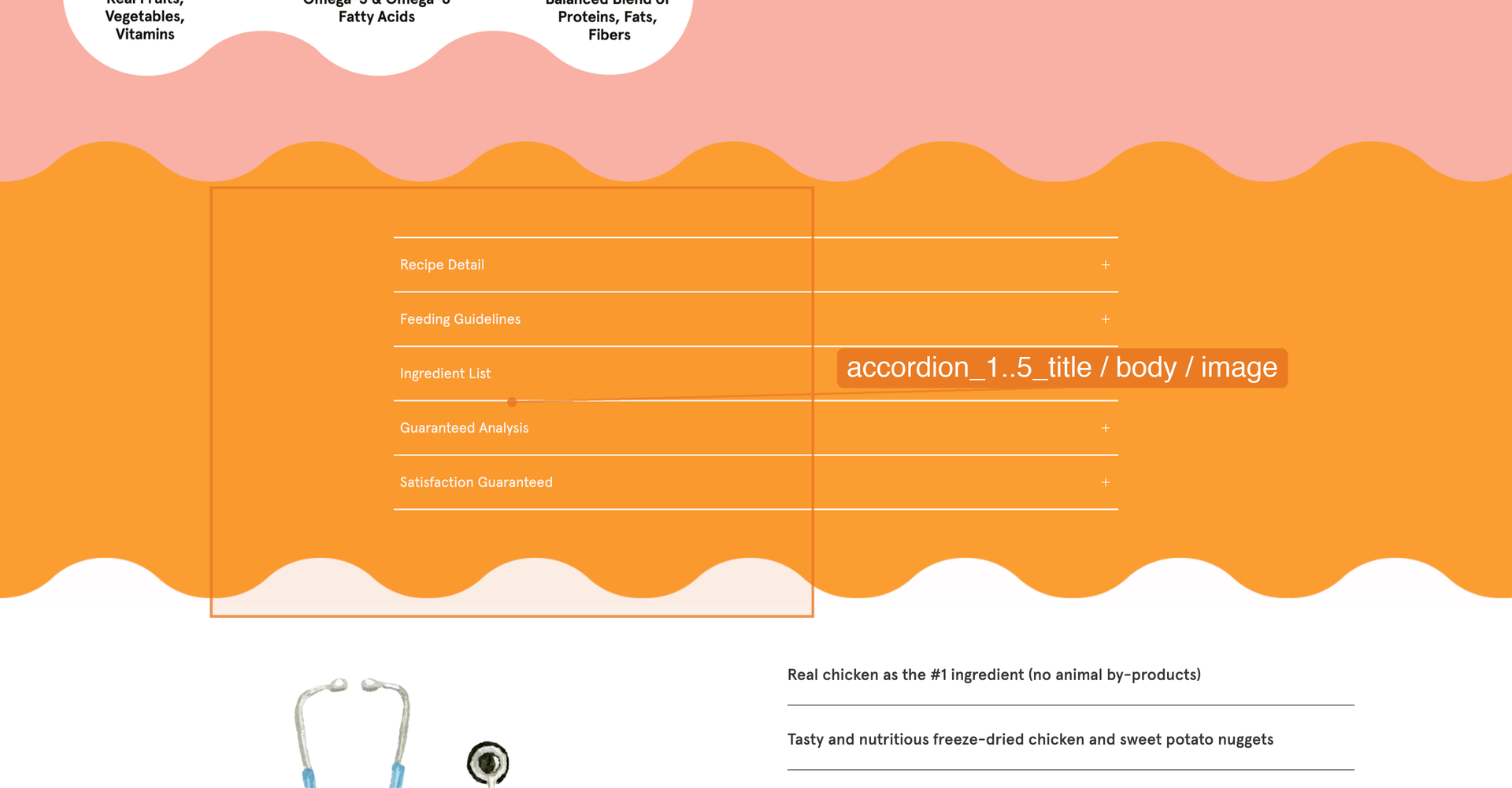
PDP — accordion_1..5_title / body / image (expandable info sections in orange area)
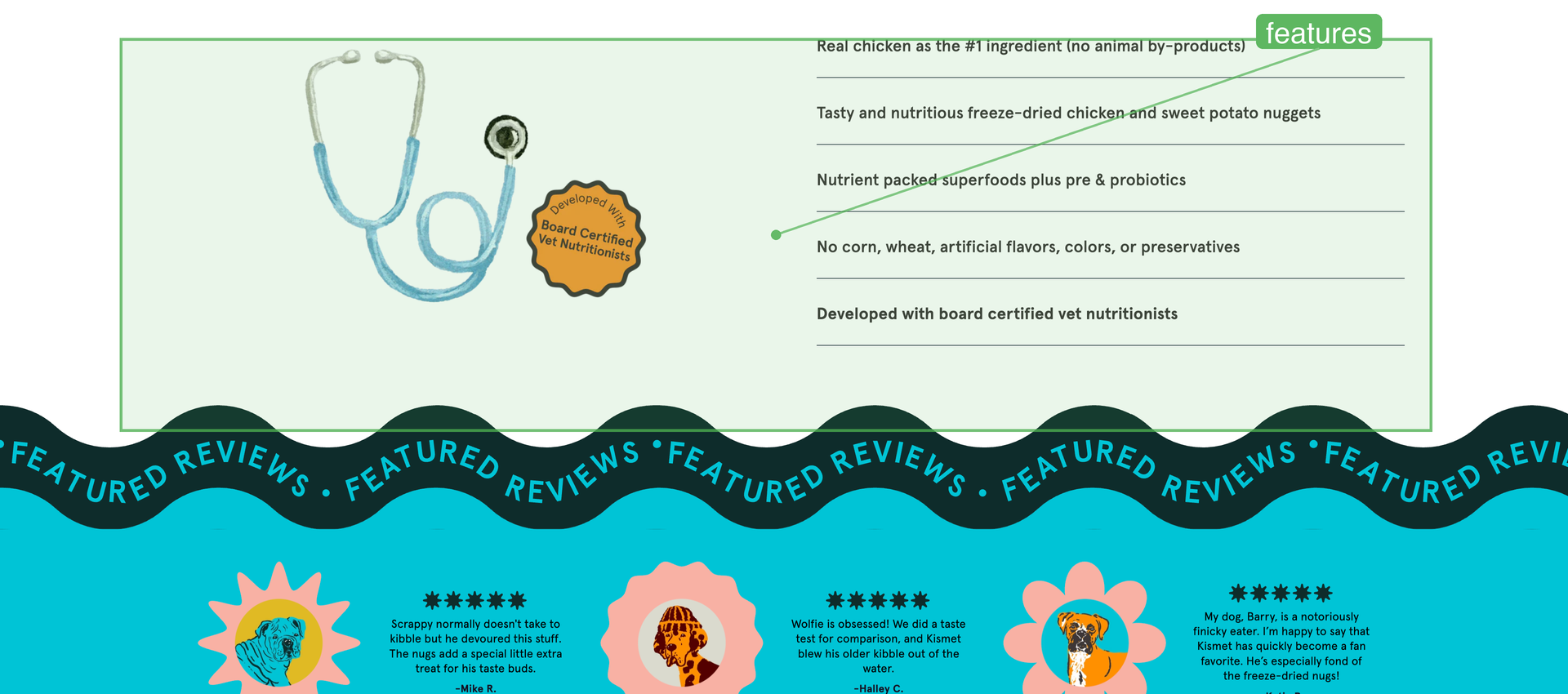
PDP — features metafield (interactive feature list with illustrations)
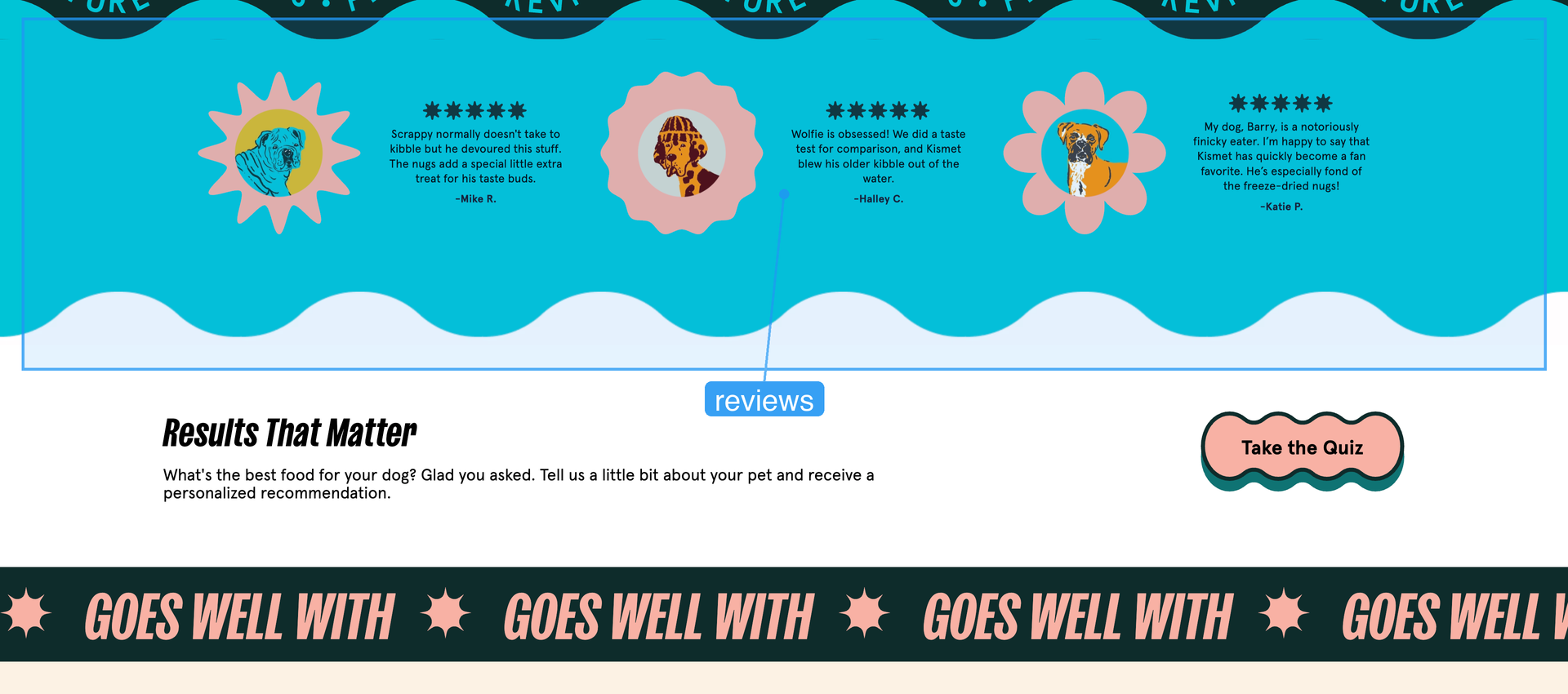
PDP — reviews metafield (featured review cards with avatars)
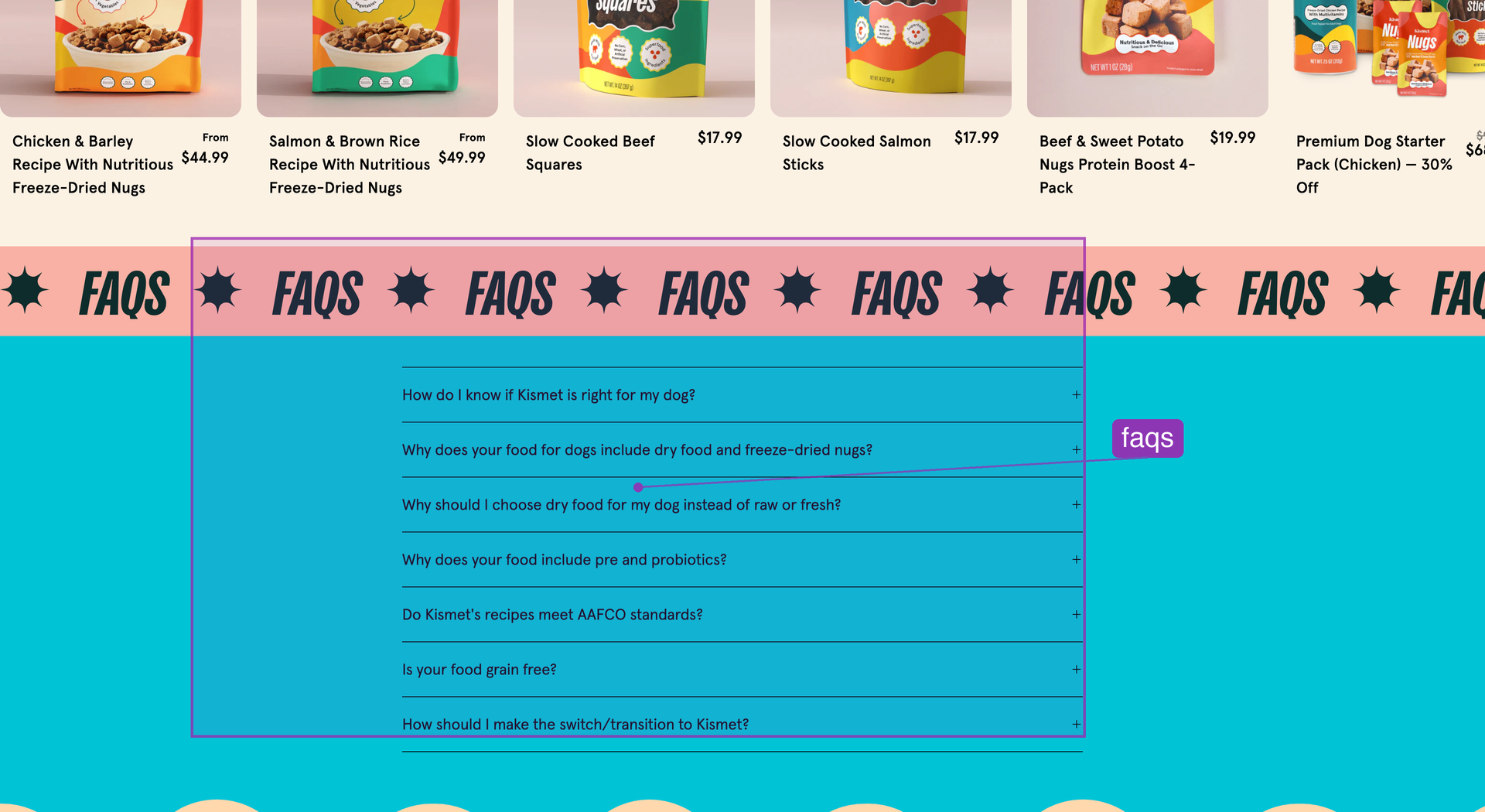
PDP — faqs metafield (scrolling "FAQS" text + FAQ accordion; section only visible when metafield is set)
Flavor Groups
Admin > Content > Metaobjects > flavor_group
Each entry has:
label — display text (e.g. "Choose Flavor")products — list of all product flavors in the group
Each product in the group needs:
flavor_group metafield pointing to the metaobjectflavor_name metafield with its label
flavor_group metaobject
├── label: "Choose Flavor"
└── products: [Chicken, Beef, Turkey]
Each product:
├── flavor_name: "Chicken"
└── flavor_group: → (ref to above metaobject)
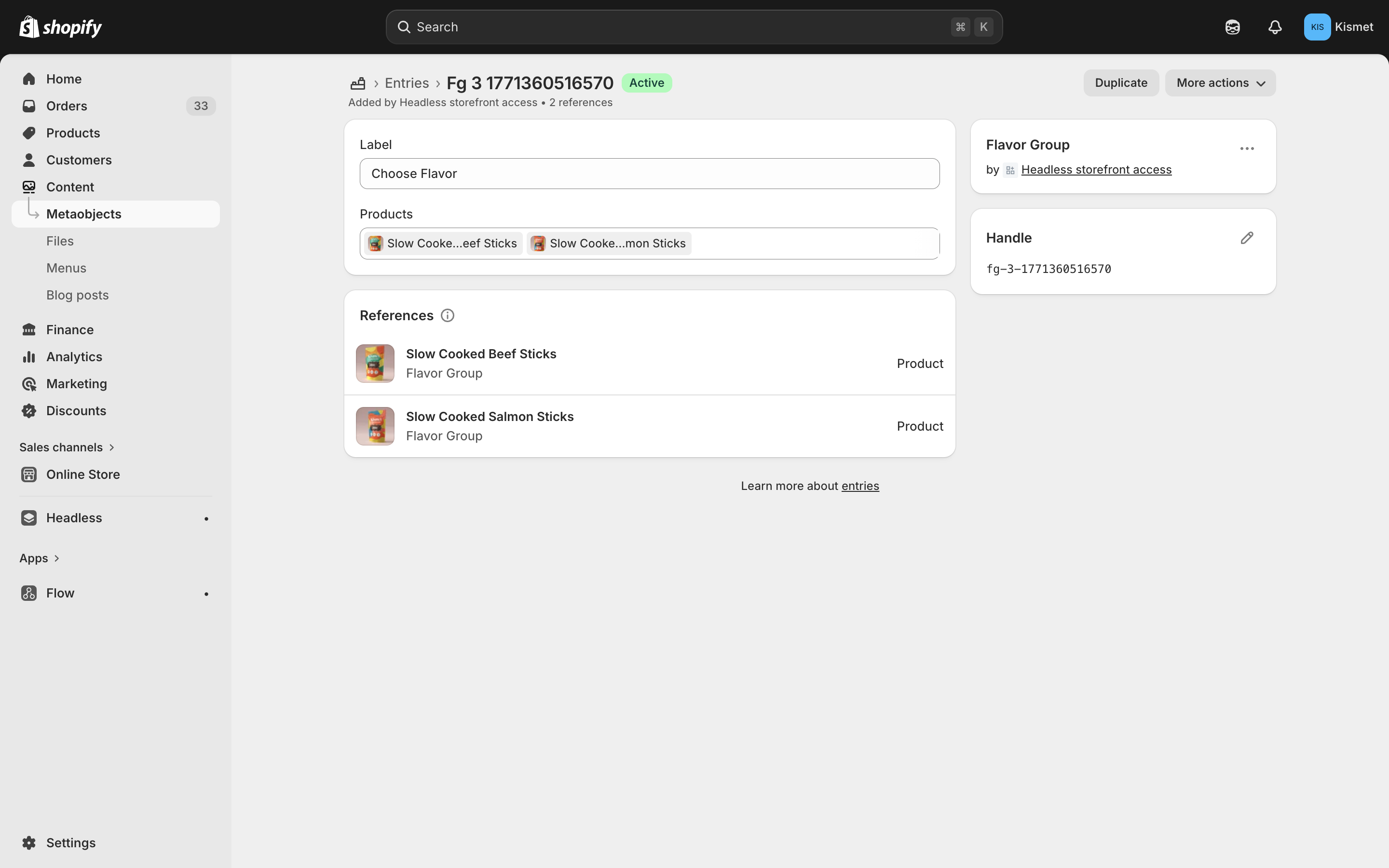
Flavor group metaobject — label "Choose Flavor" with linked products and references
On the live PDP, this renders as flavor picker pills:
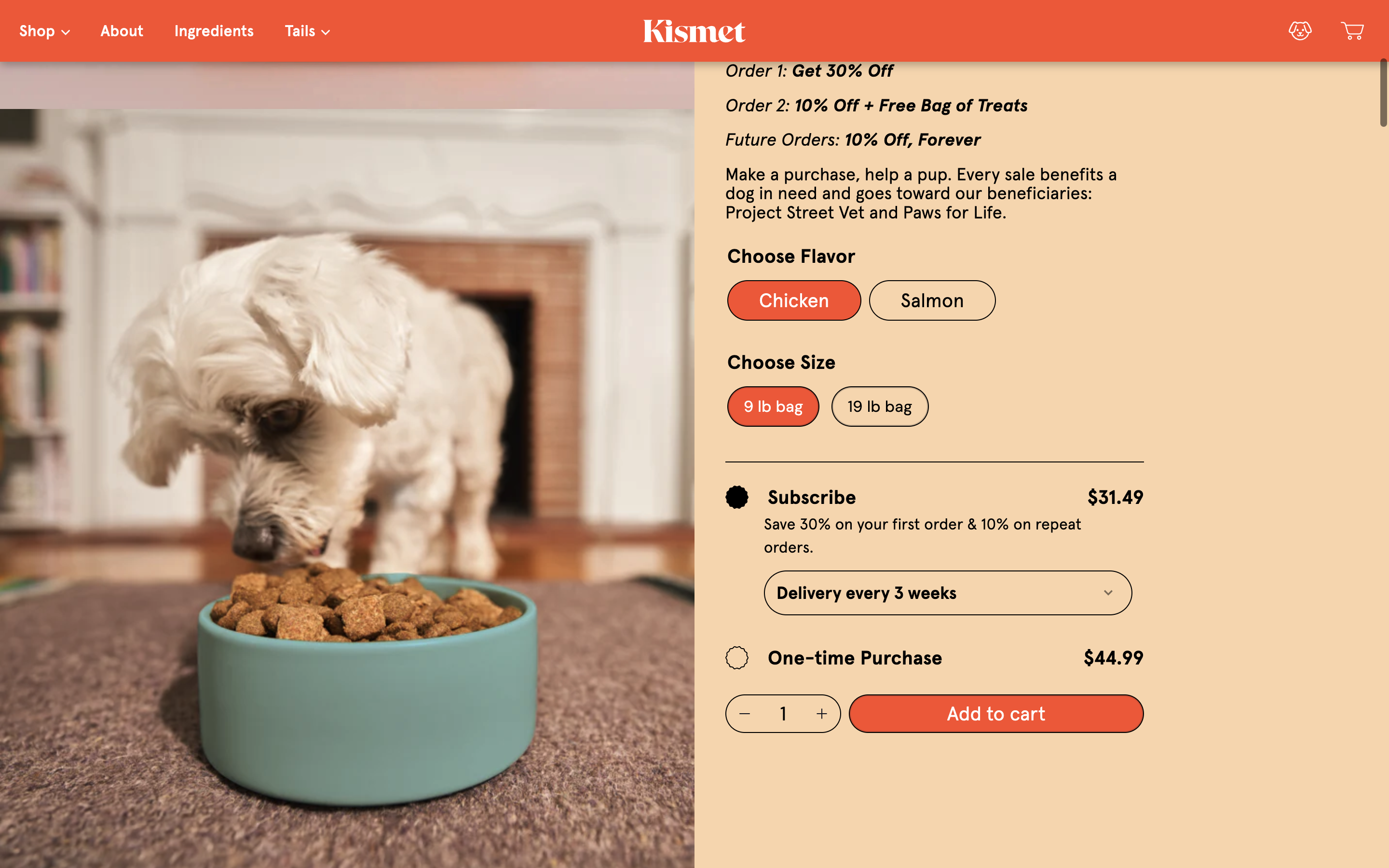
PDP — "Choose Flavor" pills (Chicken / Salmon) and size selector
3. Landing Pages
A. Metaobjects (recommended)
Admin > Content > Metaobjects > landings > Add entry
Fields:
title, hero_title, descriptionhero_image, hero_image_mobileproduct_groups — references to product_group metaobjects
The template is assigned via Theme Customizer or Online Store settings.
Available Templates
| Template | Layout |
|---|
| Default | Hero short + intro + product groups + quiz CTA + features |
| Grid | Hero short + intro + dynamic product grid |
| Grid Extra Info | Grid + quiz CTA + features |
| Grid Full Hero | Full-viewport hero + intro + grid |
| Seasonal Split Hero | Slideshow split + product groups |
| Text | Hero + two-column text (for long-form content) |
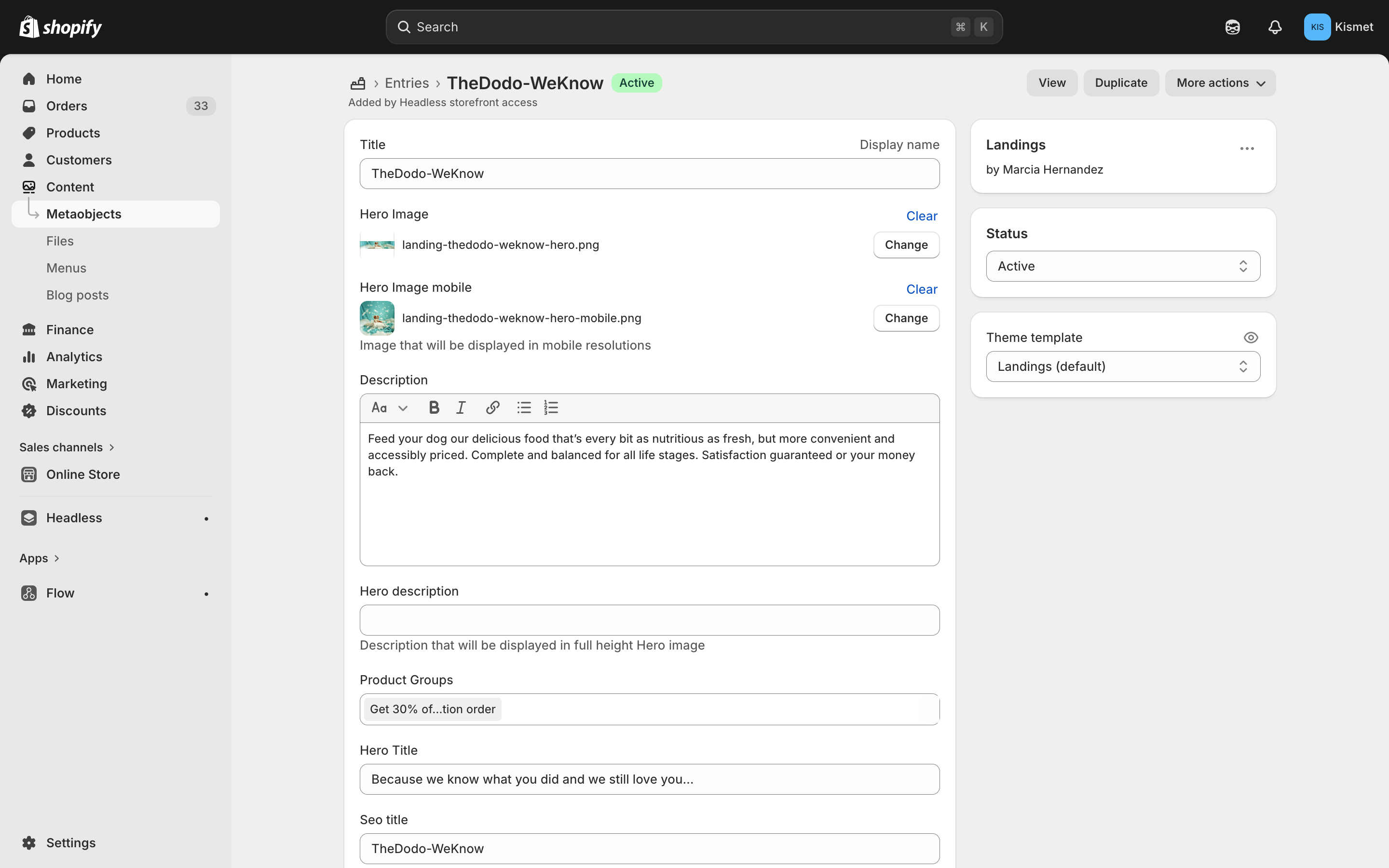
Landing metaobject entry — title, hero images, description, product groups, hero title, SEO title
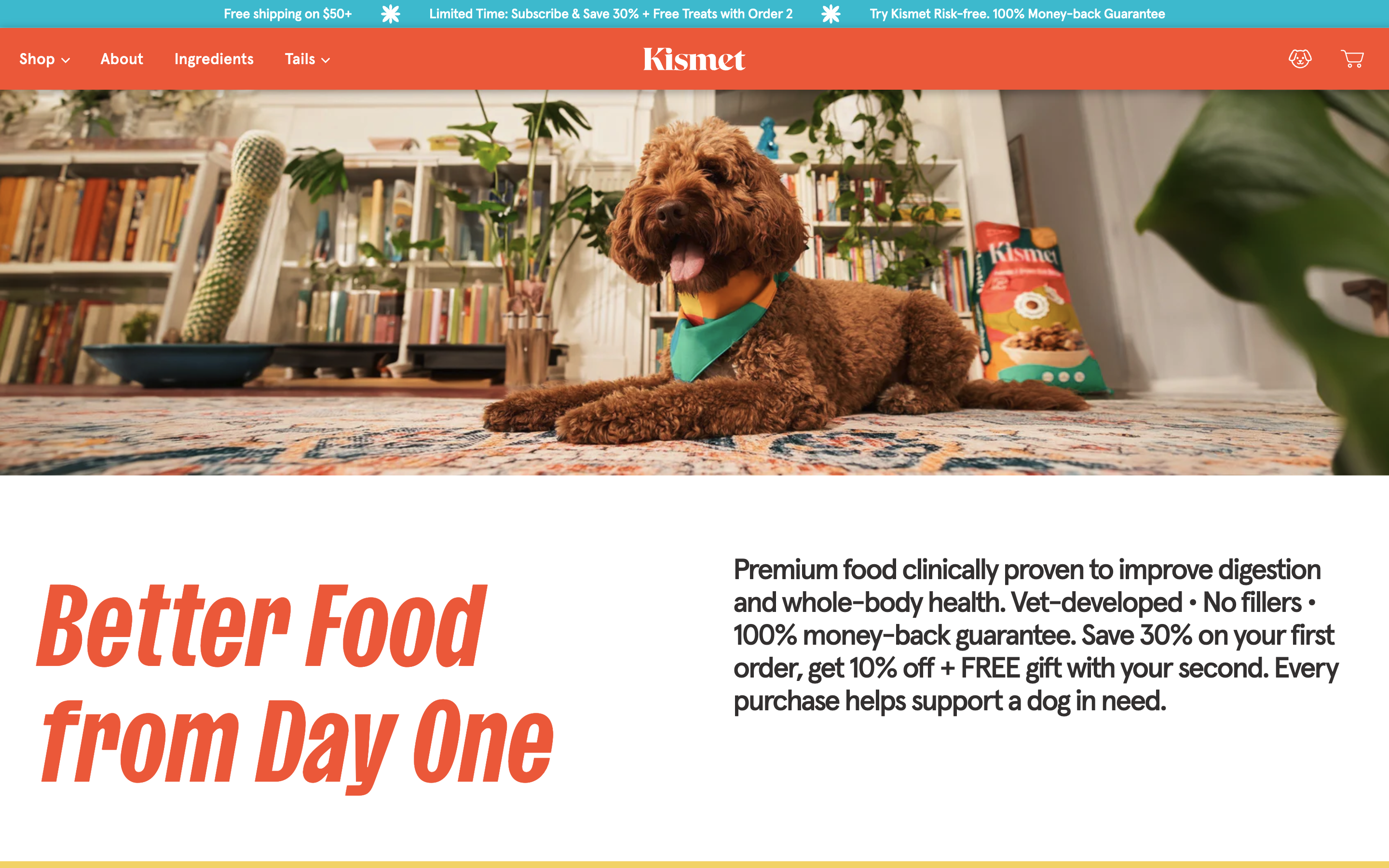
Live landing page — "Better Food from Day One" (default template)
Product groups: Admin > Content > Metaobjects > product_group (title + product list)
Tip: Friendly URLs with Redirects
Landing metaobjects generate URLs like
/pages/landings/some-handle. You can create cleaner URLs using
URL Redirects — for example, redirect
/dog-food to
/pages/landings/better-food-from-day-one. This is useful for marketing campaigns, social media links, and print materials.
B. Pages (special landings)
- Admin > Online Store > Pages > Add page
- More flexible: can use any sections via Theme Customizer
- Downside: mixes with core pages (About, FAQ, Science, etc.) in the pages list
- Use for one-off campaigns or layouts that don't fit the metaobject templates
4. Blog & Articles
Key concept
All articles live in one blog called "articles". Categories (Facts, Founder Notes, Field Reports, etc.) are managed via tags on each article. Each blog category page filters articles by its tag.
Creating an Article
Admin > Content > Blog Posts > Add blog post
- Select blog:
articles
- Add appropriate tag(s) for the category:
Facts, Founder Notes, Field Reports, Ask a Vet, Features, Q&As, How We Kismet, Visuals
- Set featured image (used as hero image)
- Set SEO title + description at the bottom
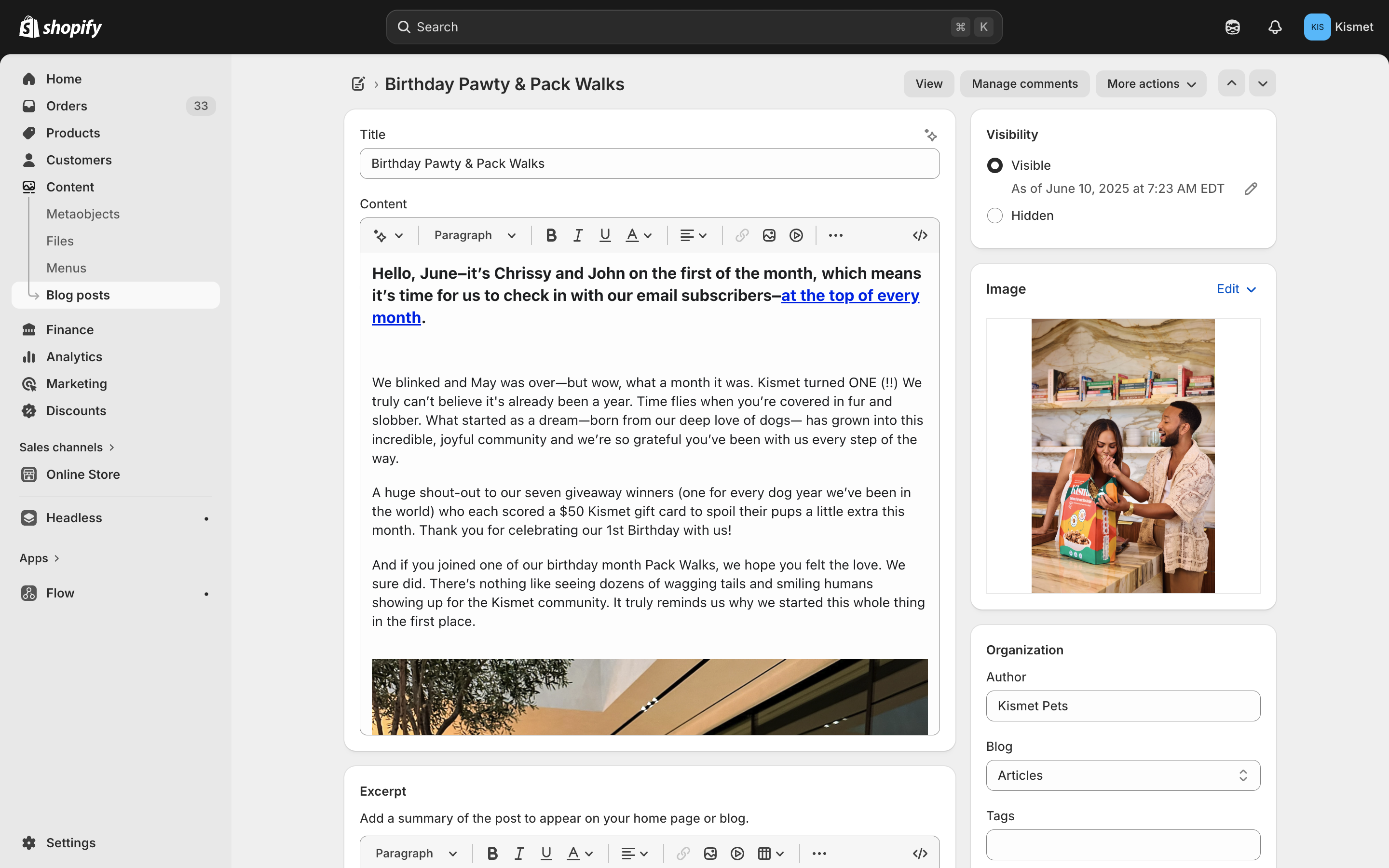
Article editor — title, content, featured image, tags (right sidebar)
Article Metafields
| Metafield | What it does |
|---|
hero_video_url |
Vimeo or YouTube URL — renders as autoplay/muted/looped video in hero. Supports vimeo.com/ID, youtube.com/watch?v=ID, and youtu.be/ID |
hero_side_by_side |
Boolean toggle — switches hero layout from stacked (image/video on top) to side-by-side (image left, title+subtitle right) |
hero_subtitle |
Subtitle text, only shown in side-by-side layout |
related_articles |
List of article references — drives the "More Tails" section at article bottom. If empty, falls back to latest articles or random by tag (configurable in Theme Customizer) |
is_video |
Boolean — shows a play button overlay on article cards in grids and carousels |
attributions |
Rich text for credits/byline. If set, shown as-is. If empty, theme shows "Words by {author}" — except when author is "Kismet Pets", in which case nothing is shown |
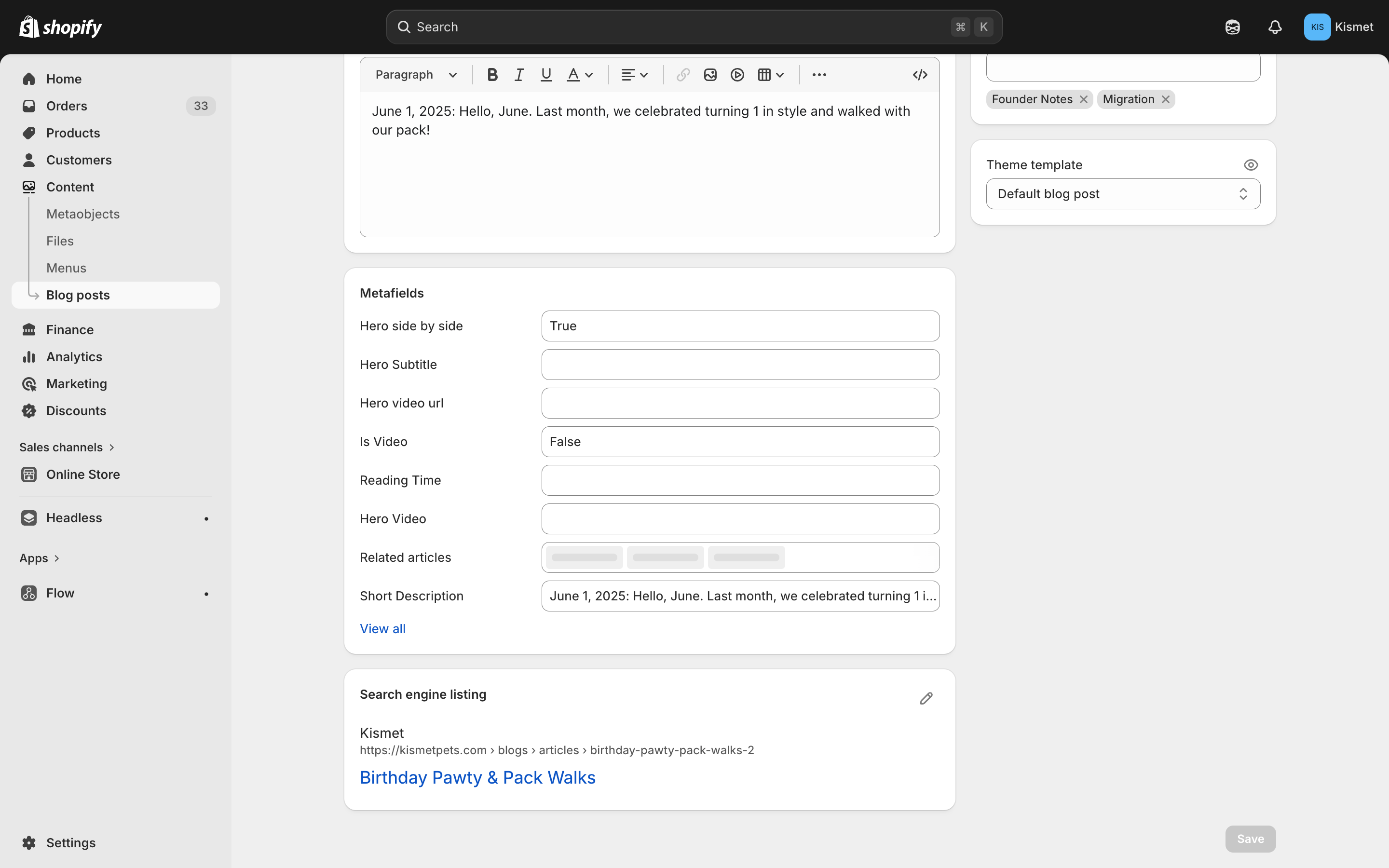
Article metafields — Hero side by side, Hero Subtitle, Hero video url, Is Video, Related articles, Short Description
Hero Layouts
Toggle hero_side_by_side to switch between:
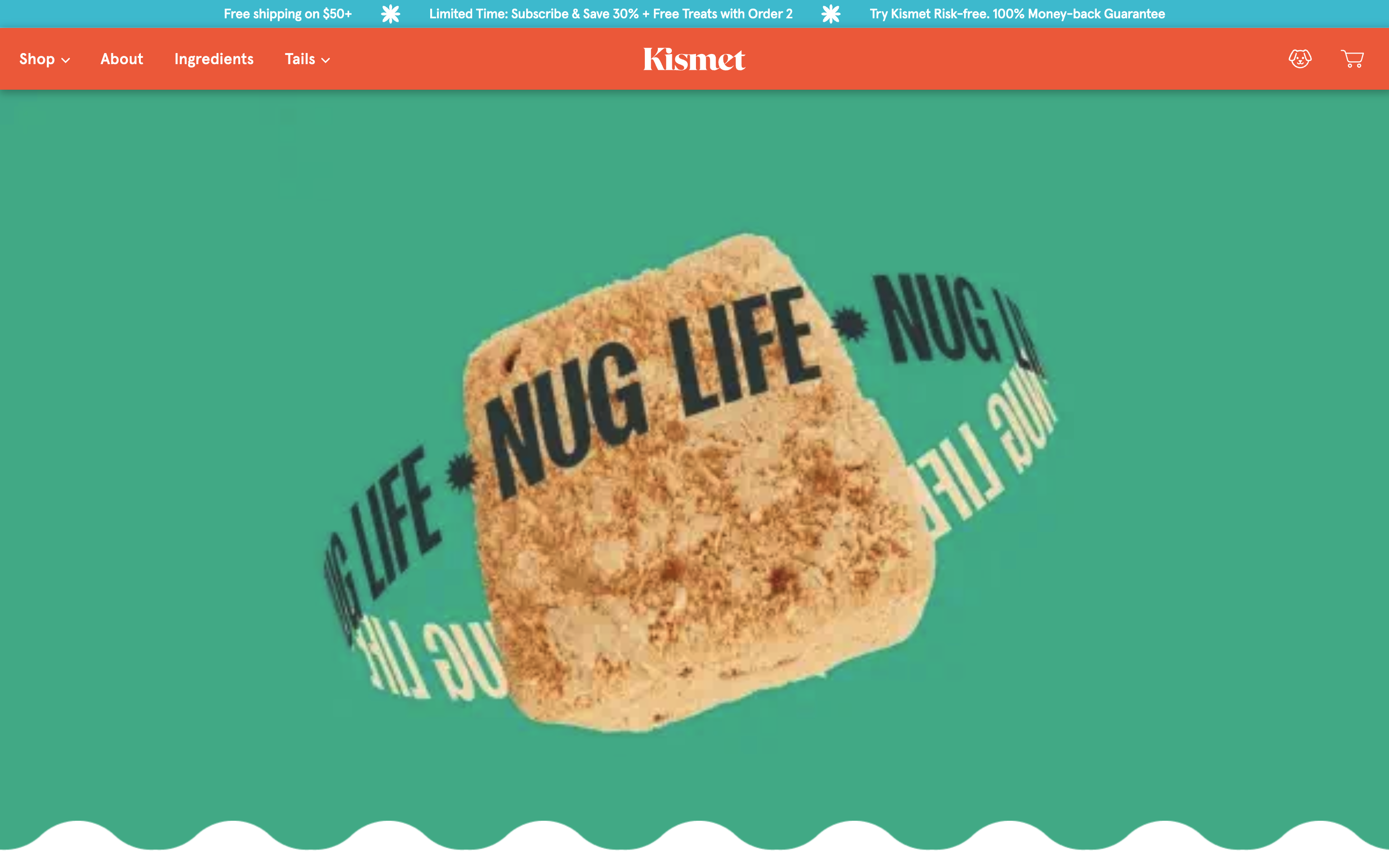
Stacked layout (default)
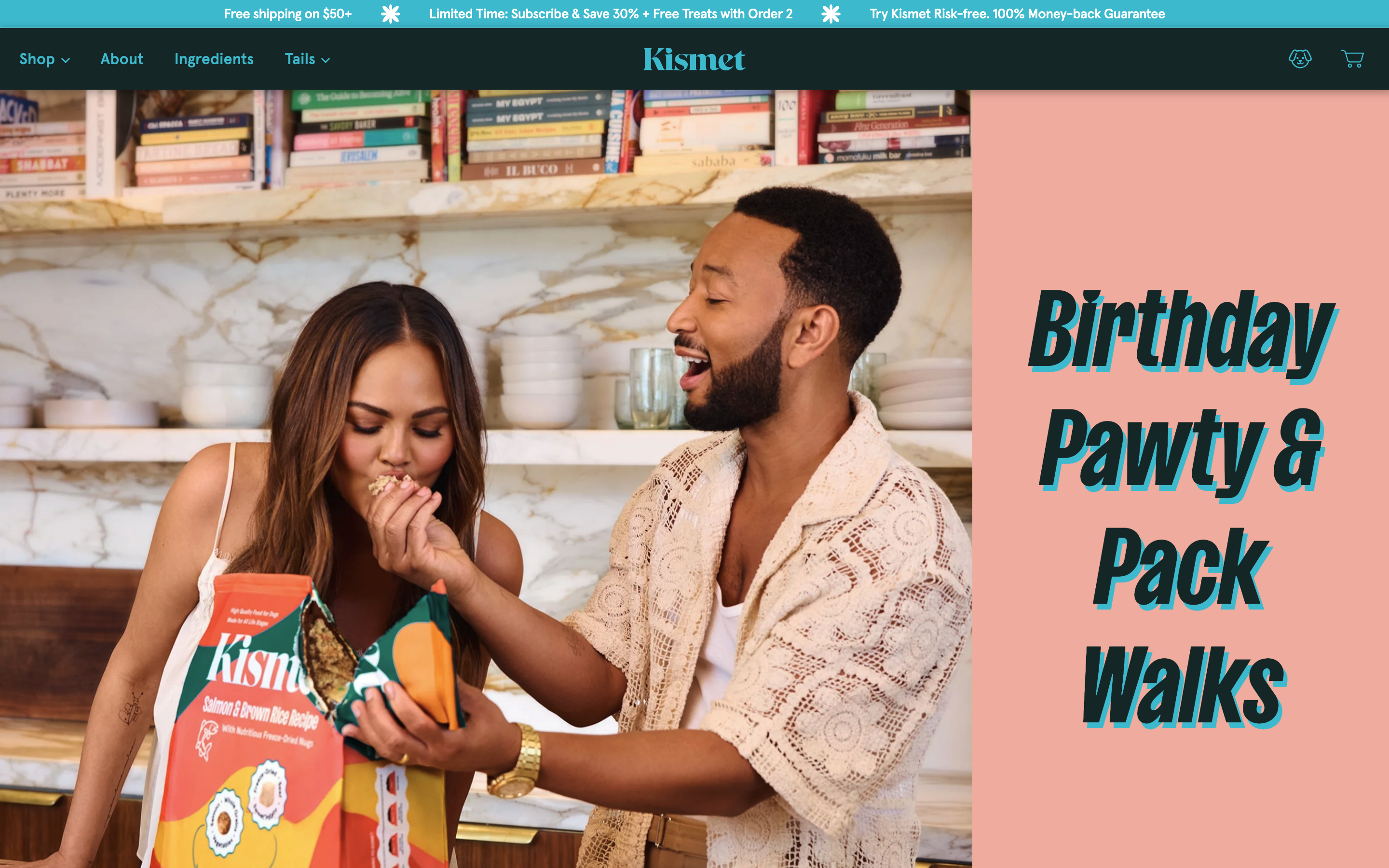
Side-by-side layout (hero_side_by_side enabled)
About the Author Field
Shopify limitation
Shopify only allows selecting real staff accounts as article authors. "Kismet Pets" was set via API — there's no way to select it manually in the admin.
Workaround: Leave the author as whatever staff member creates the article, and use the attributions metafield for custom bylines. The author field is not displayed on the frontend when attributions is set.
Updating "All Stories" Page
- This page is manually curated (not auto-generated)
- Open Theme Customizer > select the "All" blog template > edit the
articles-with-title section
- Add/remove/reorder article blocks and category title blocks
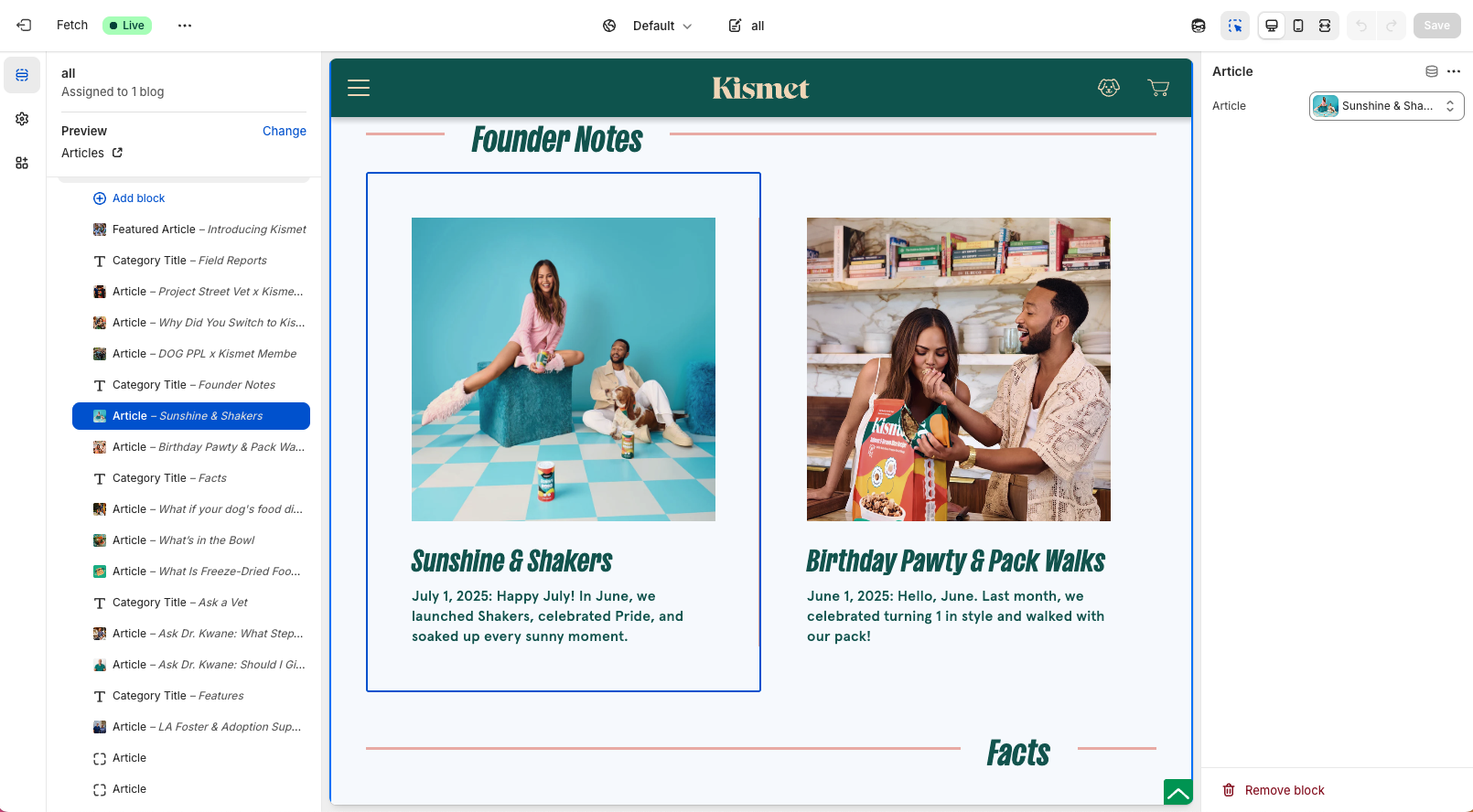
Theme Customizer — "All" blog template: article blocks and category title blocks (add/remove/reorder here)
5. SEO & Redirects
Meta Title & Description
Every product, article, page, and collection has a "Search engine listing" section at the bottom of its edit page. Edit title and description there.
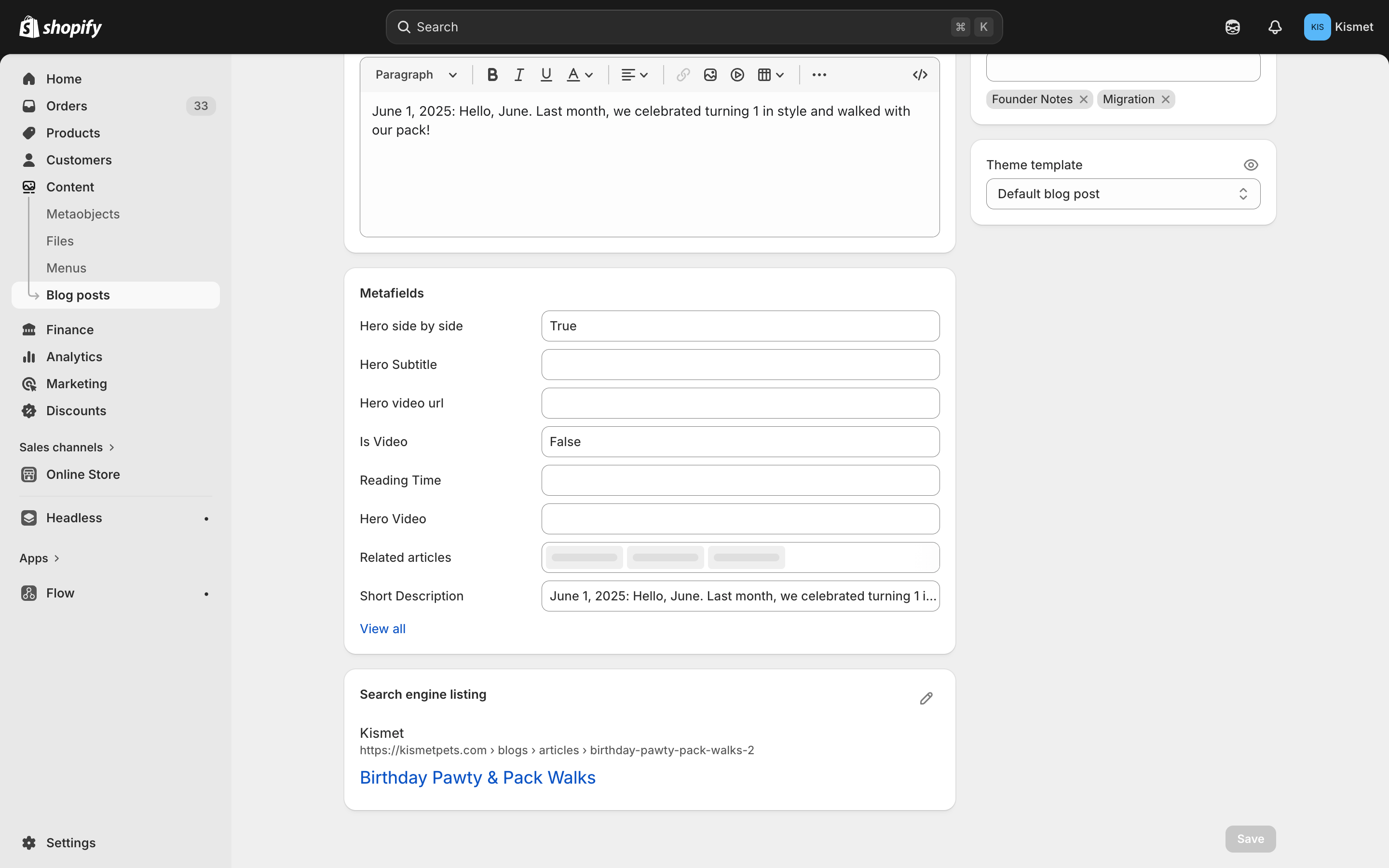
Search engine listing — edit meta title, URL handle, and description
URL Redirects
Direct URL: https://admin.shopify.com/store/kismet-pets/redirects
Note
Shopify removed the navigation path to the redirects page, but the URL still works. Bookmark it.
- Create redirects from old URLs to new ones
- Supports importing CSV for bulk redirects
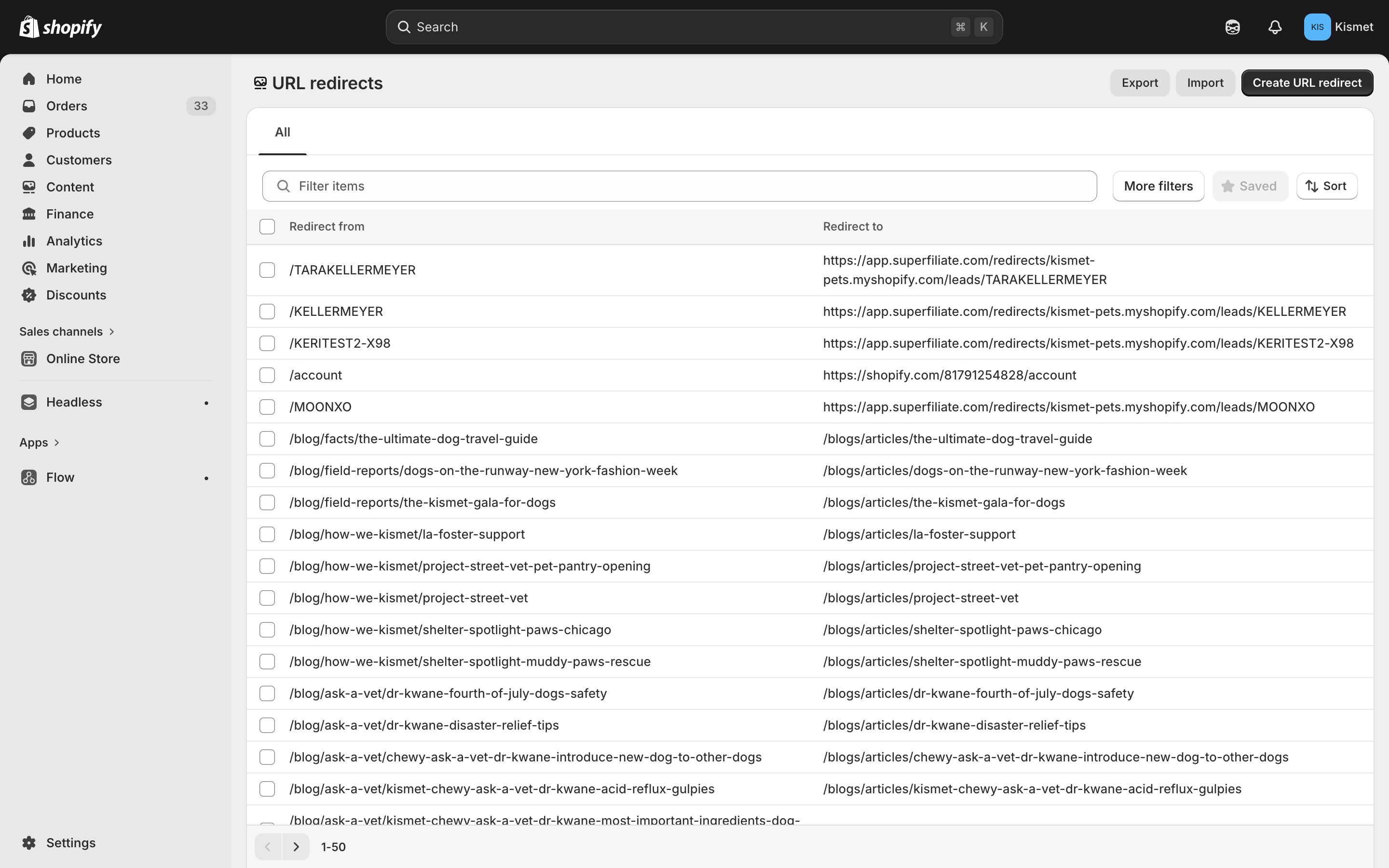
URL Redirects page — create and manage redirects, import via CSV
7. General Theme Settings
All accessible via Theme Customizer > Theme Settings.
Opening the Theme Customizer
Online Store > Themes > Customize. Use the page/template dropdown at the top to navigate to different pages.
Announcement Bar
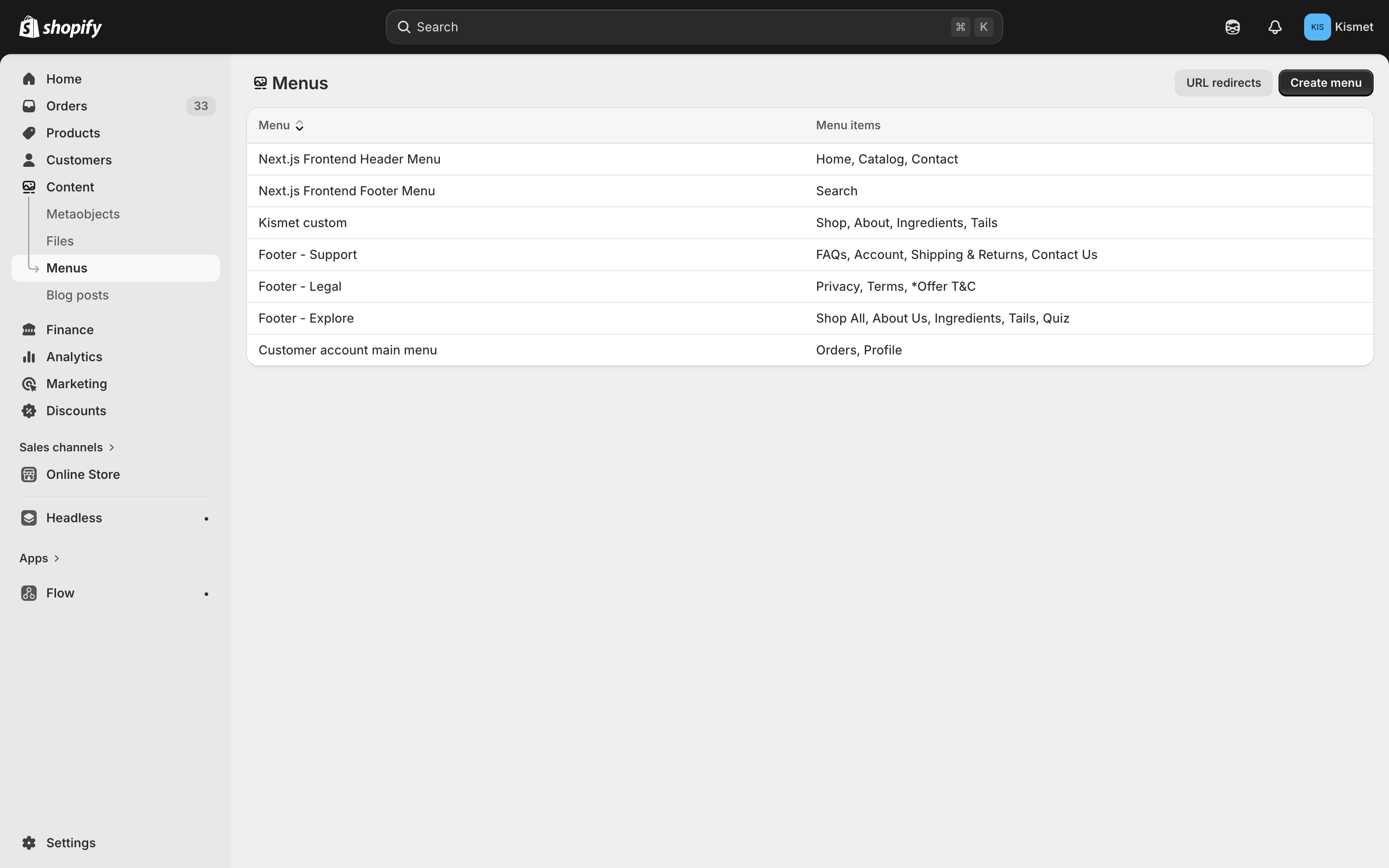
Theme Customizer > Header group > Toolbar — up to 3 rotating messages.
Kismet Palettes
- Enable/disable palette rotation (random palette per hour)
- Set default palette:
submarine, salad, electric, skittles, lego
Social Media Links
Instagram, TikTok, YouTube URLs — set in Theme Customizer > Theme Settings > Social media.
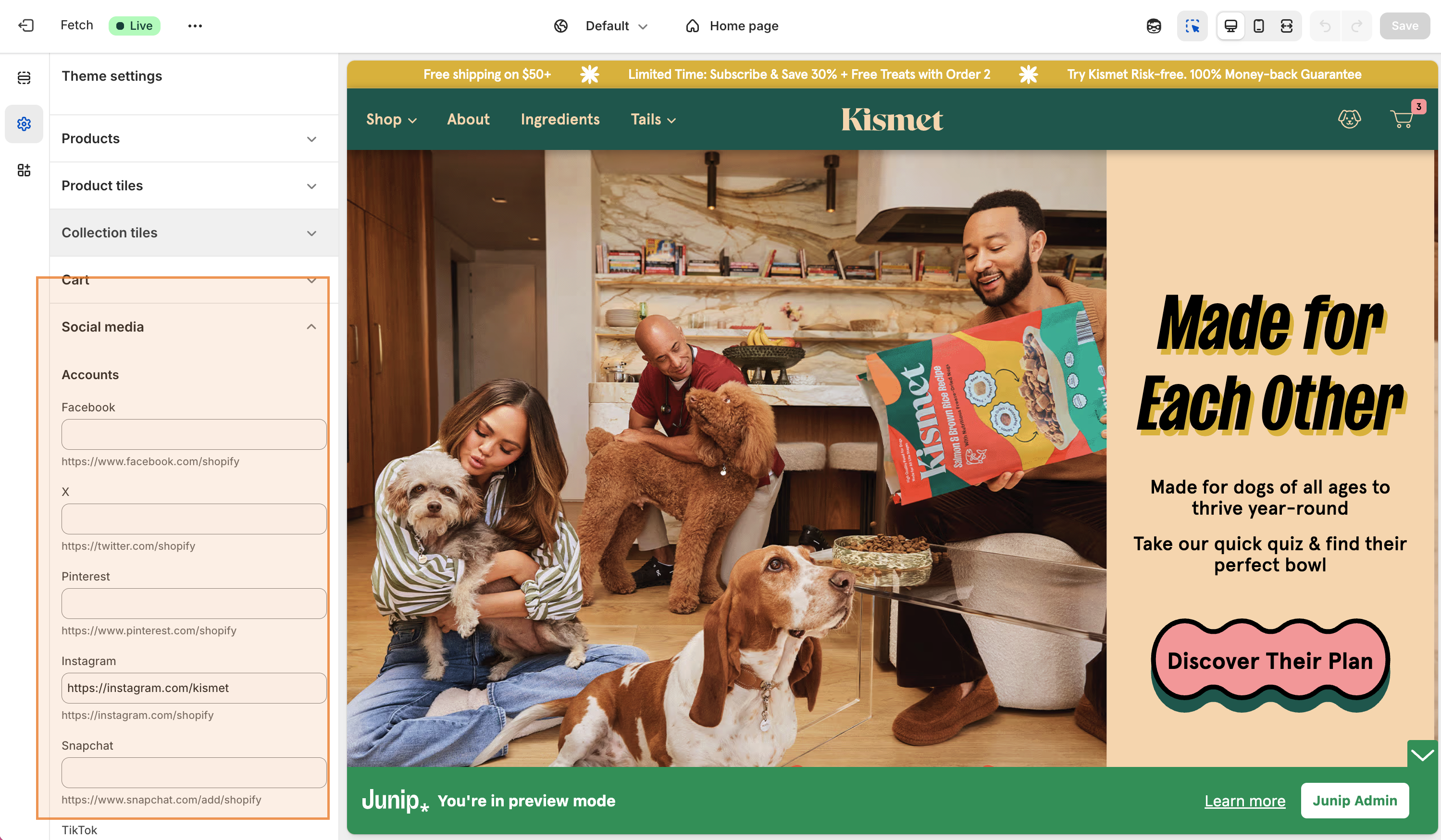
Theme Settings > Social media — set Instagram, TikTok and YouTube URLs